Uploading files
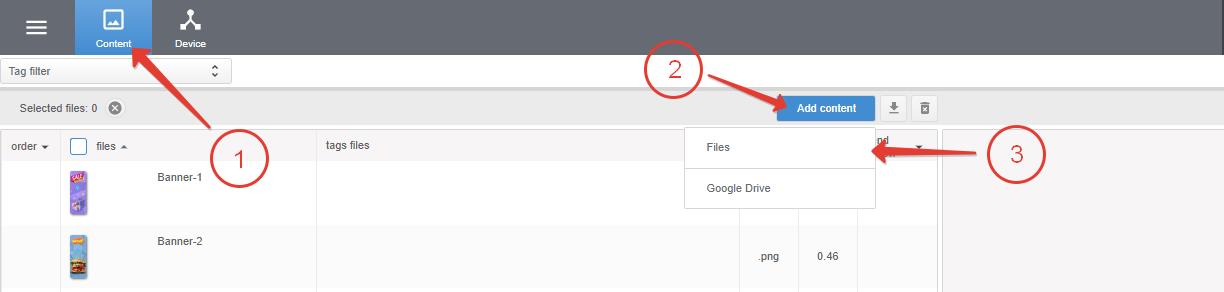
To upload files, go to the Content section, click Add content and then Files.
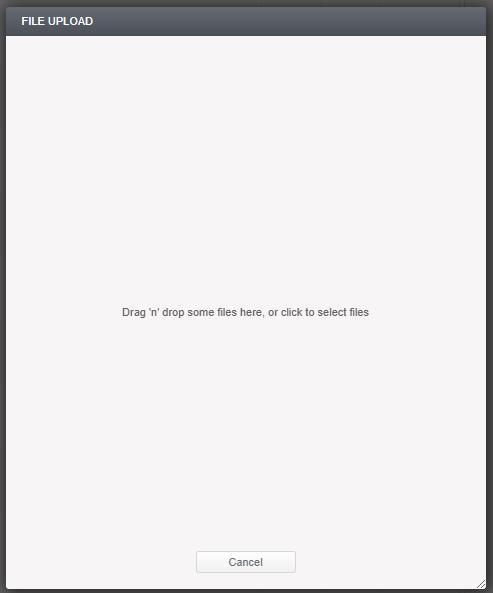
Move files to the window that opens or click on it to select files.
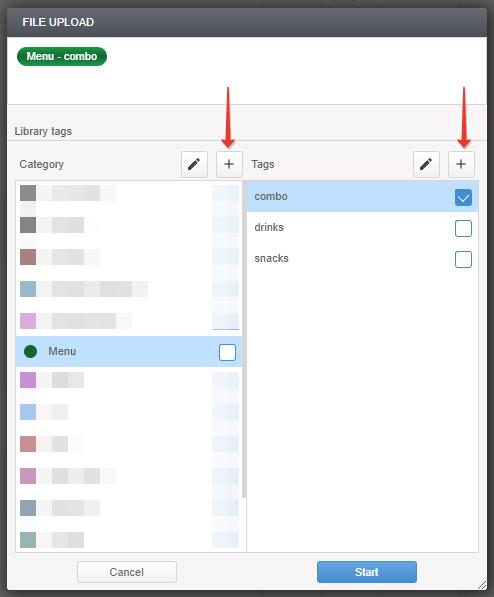
Specify the tags with which the files will be uploaded to the server. In the future, you can add, delete or replace the specified tags with others. To create a new tag or category, press “+“.
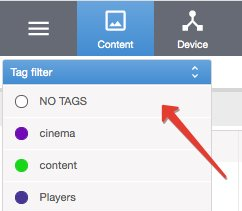
You can skip this step and not add tags. To find files without a tag after uploading, click NO TAGS in Tag filters.
Resolving conflicts when uploading duplicate files (that is, files that were previously uploaded to the server).
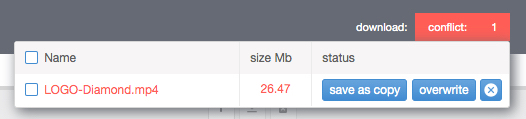
- Overwite: files will be overwritten. New files will inherit all tags and display properties of old files. If the old file was published to devices, the new file will be published instead of it automatically.
- Save as copy: files will be uploaded as copies. No inheritance of tags and display properties.
- Cancel: cancel the upload.
Deleting files
Select the required files and press Delete.
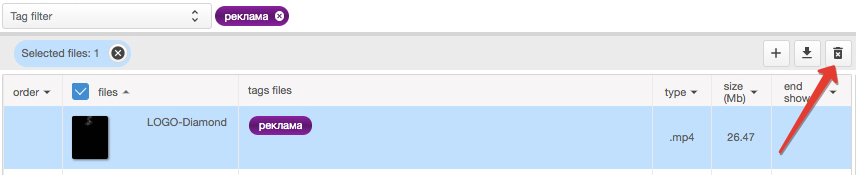
When you delete published files, they will also be deleted on your devices.