DS-GO.PRO provides the opportunity to use content hosted in the Google Drive cloud service. You can use both single Google Drive files and folders with files.
Synchronization between Google Drive and devices is automatic. Files placed in the Google folder will be automatically delivered to devices and played according to the settings of this folder, and all files deleted from the folder will be excluded from display and deleted from devices. If you are using a single file, then when you delete it from Google Drive, it will also be automatically excluded from display and deleted from devices.
To add a folder or file from Google Drive, go to the Content section, click Add content and then Google Drive.
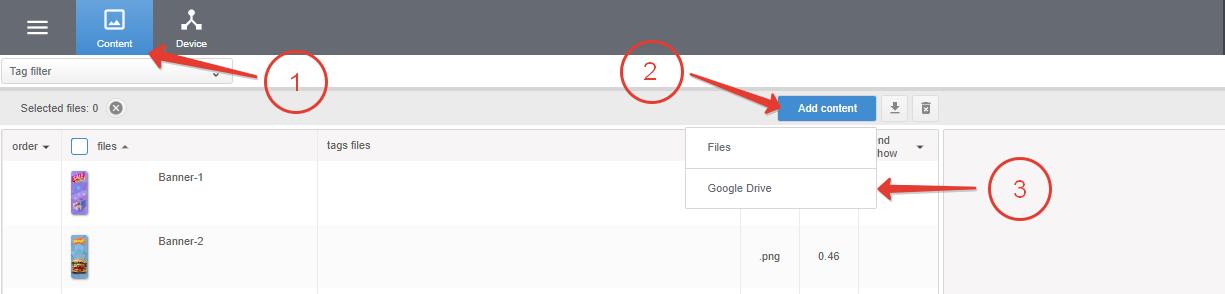
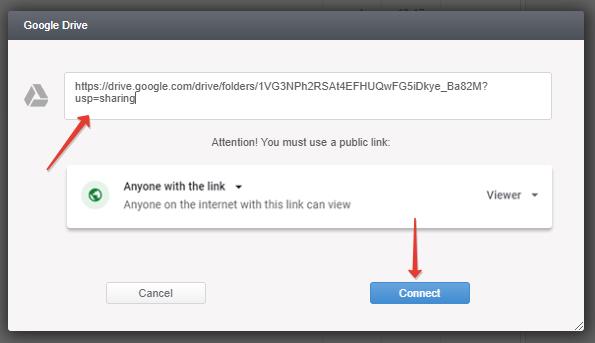
Paste a link to a folder or individual file and click Connect.
Links must have access level Everyone who has a link!
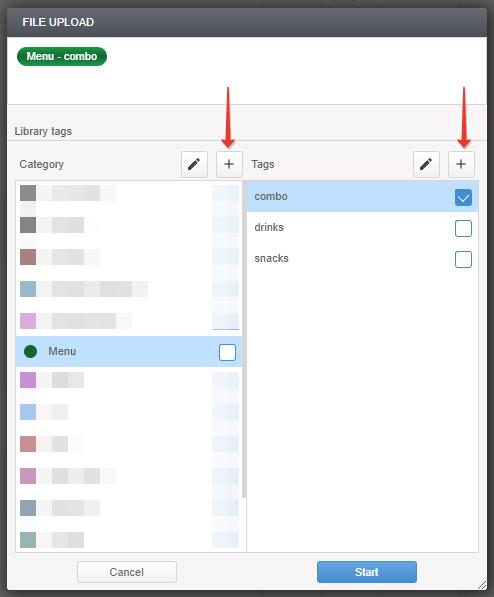
Specify the tags with which the files will be uploaded to the server. In the future, you can add, delete or replace the specified tags with others. To create a new tag or category, press “+“.
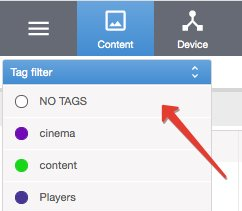
You can skip this step and not add tags. To find files without a tag after uploading, click NO TAGS in Tag filters.
Once synchronization between the DS-GO server and the specified link is complete, the folder or file will appear in the general content list.

Display properties are configured in the Tags & rules section.
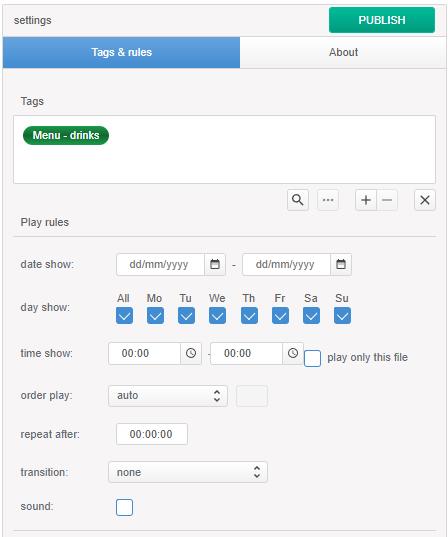
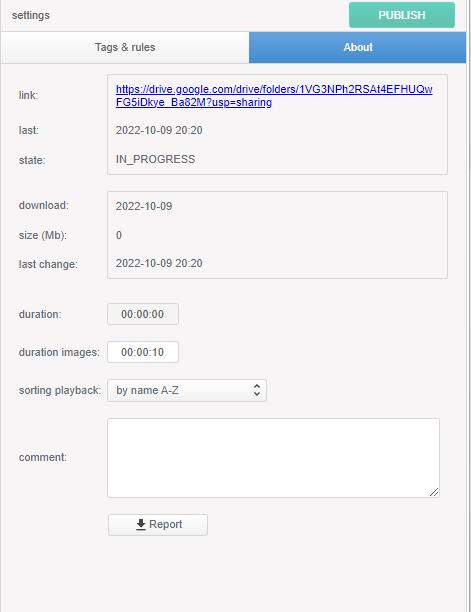
If a link to a Google Drive folder is used, the display properties settings will be applied to the folder as a whole file. To configure the behavior of files inside a folder, namely the order in which files are displayed and their duration, go to the About section.
Content synchronization time between Google Drive and the DS-GO server averages 5-10 minutes. The time it takes to download content directly to playback devices depends on the speed of your Internet connection.