Now let’s publish background and advertising content to the device
In our example, Advertising content will be played every 20 seconds. Background content will pause when an ad is shown because it is published in Layer 2, which has a lower playback priority than content published in Layer 1.
The device to which the publication will be published must be turned on and connected to the Internet.
1Go to the Content section, select the file named Clip_1 by clicking on it. If you need to play a file with sound, check the Sound field. In order for the file to be published in the desired template channel, specify its tag, Background.
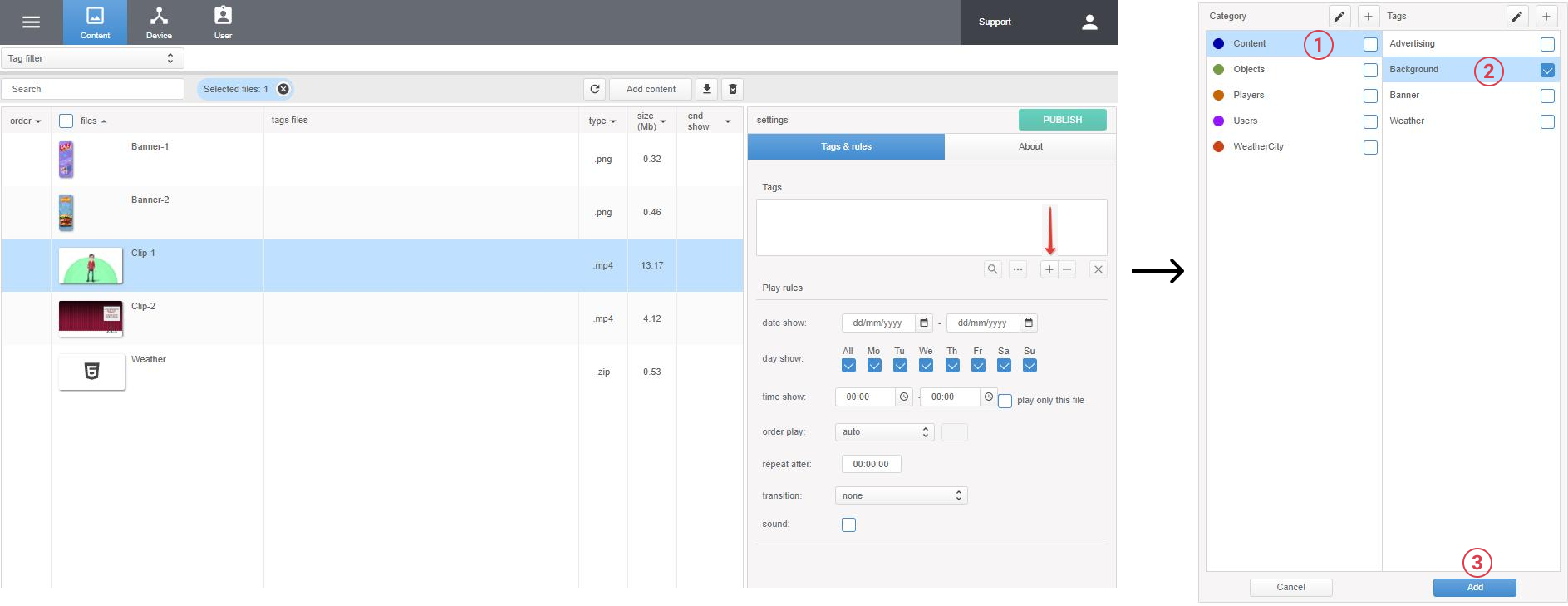
To save the settings, click Update
2Using the Shift key, select two files Banner_1 and Banner_2 and specify tag Banner for them.
To save the settings, click Update
3Select the file Weather and give it the tag Weather. How to specify a city for a weather widget.
To save the settings, click Update
4To publish files, select them and click the Publish button.
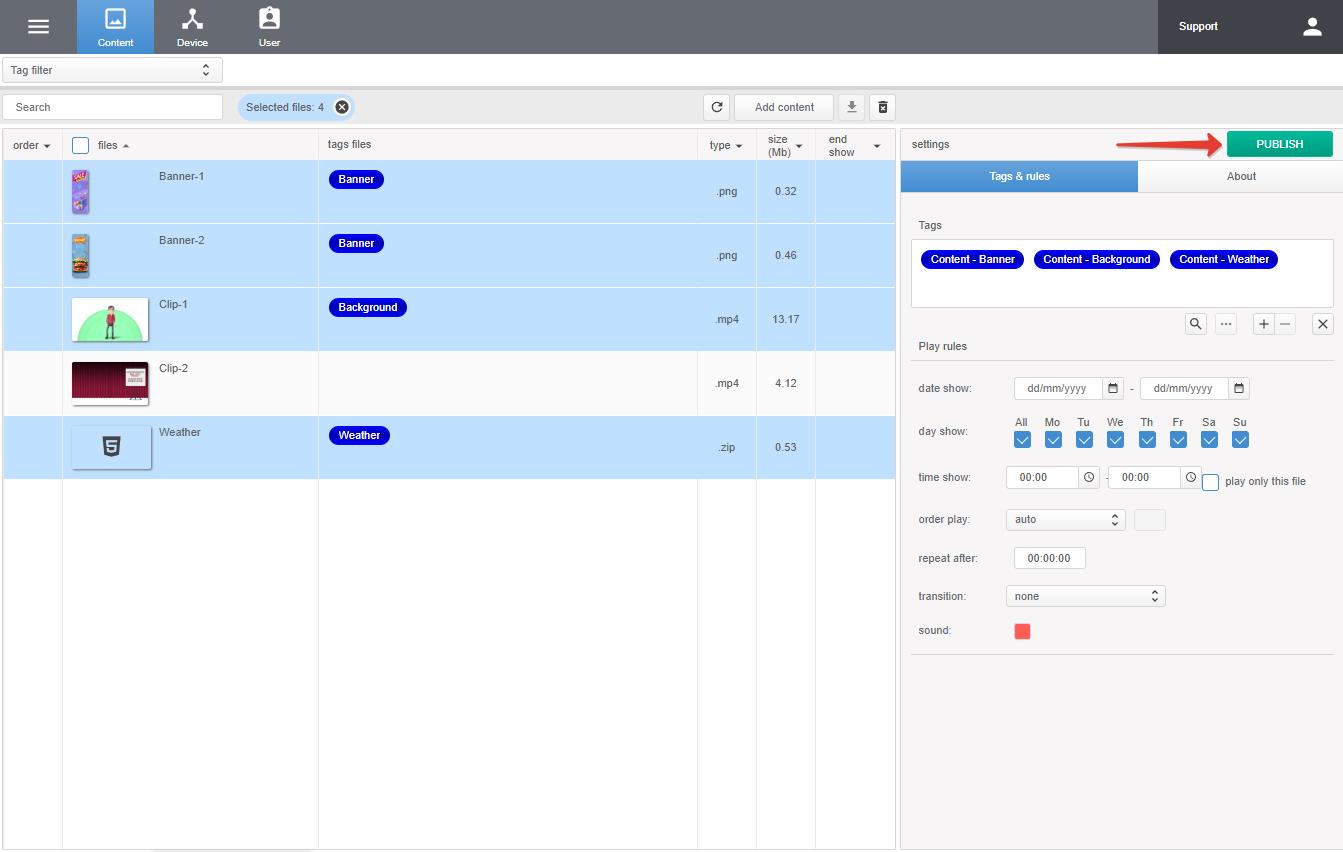
The publication time depends on the speed of the Internet connection on your device.
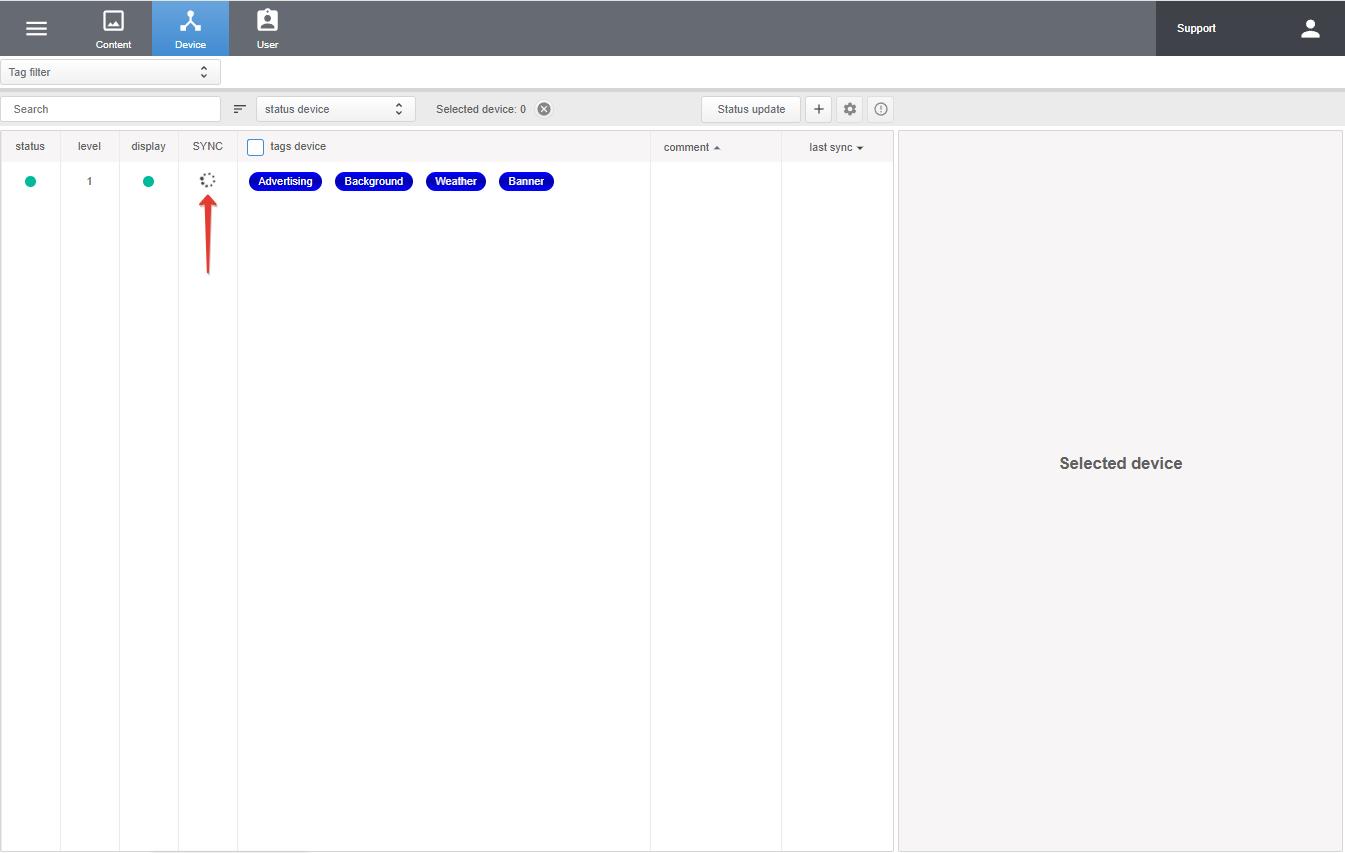
The publishing process is displayed in the Device section, in the SYNC field. To update the publication status, use the Status update button.
We publish advertising content
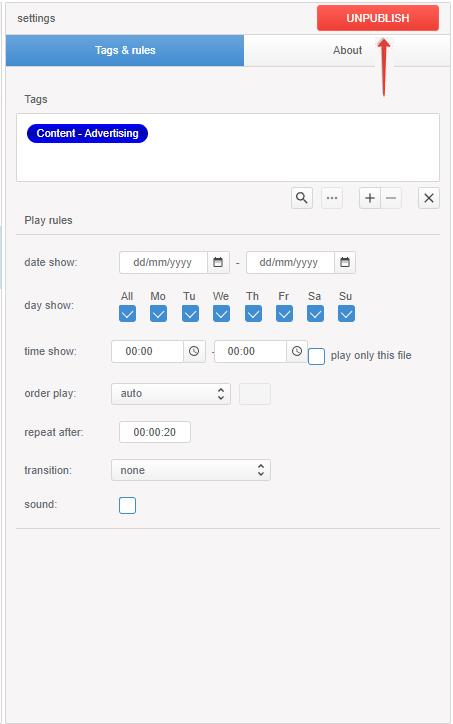
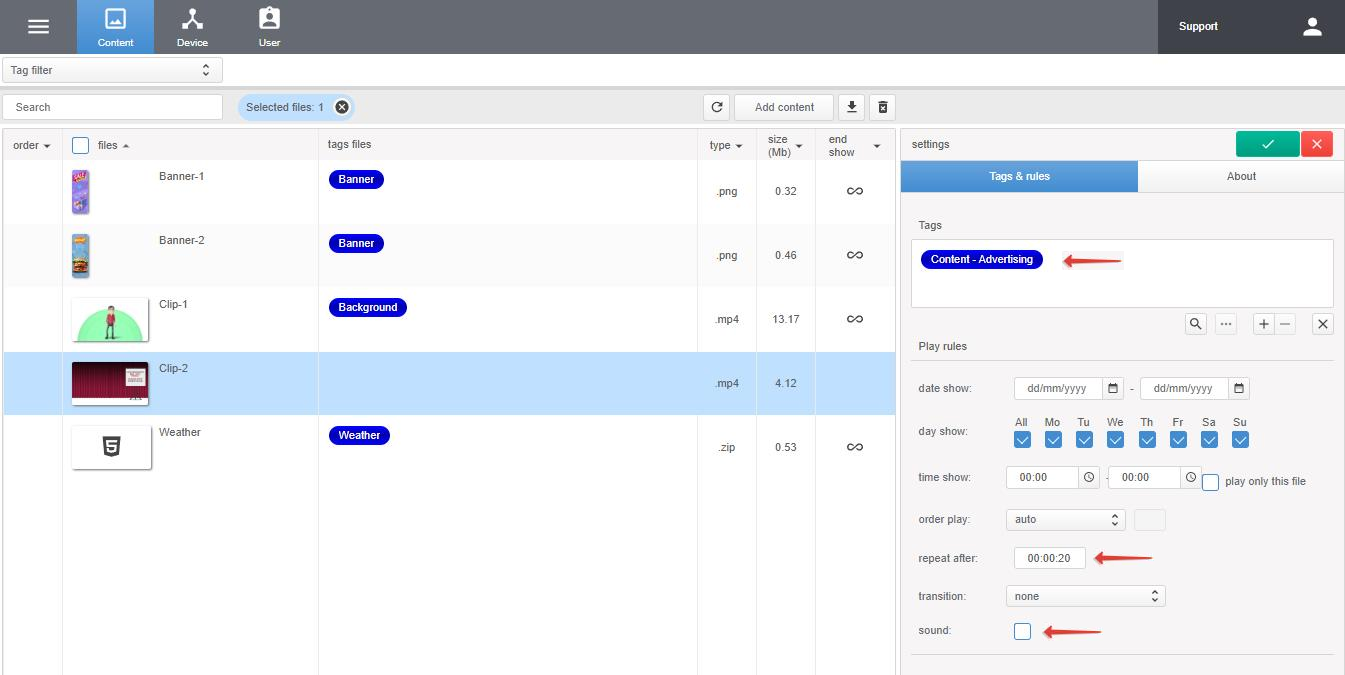
Select a file named Clip_2 and in the repeat after field specify the interval at which the video will be repeated, for example 00:00:20 (20 seconds) and if necessary, turn on the sound.
To pause the rest of the content (previously published in the Layer 2 layer) when playing an advertising video, you need to specify the channel tag of the Layer 1 layer template: Advertising.
To save the settings, click Update
And to start publishing, click Publish
To unpublish files, select them and click Unpublish.